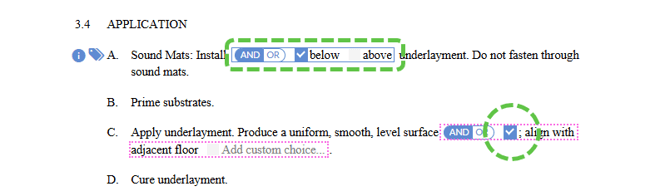
Navigate to the Spec Checklist or Spec Master Checklist
From the Project Dashboard, click Spec Checklist:

From the Firm Master Dashboard, click Spec Master Checklist:

You must have Author or Administrator permissions to access and edit the Spec Checklist or Spec Master Checklist. Learn more about Participant Permissions.
Locate the Section in the Spec Checklist
Scroll to find the section you want to add, or use the search to quickly find a number or title:
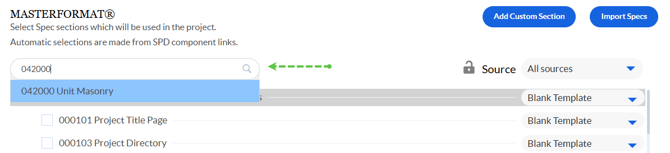
Add Custom Sections to accomodate non-standard Section Numbers and Titles.
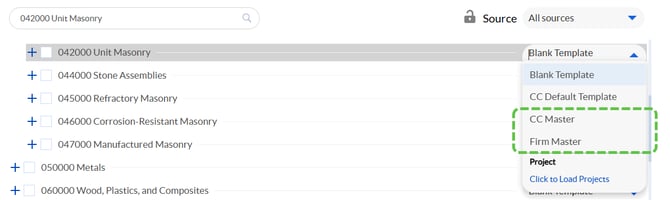
Select a Source for the Section:
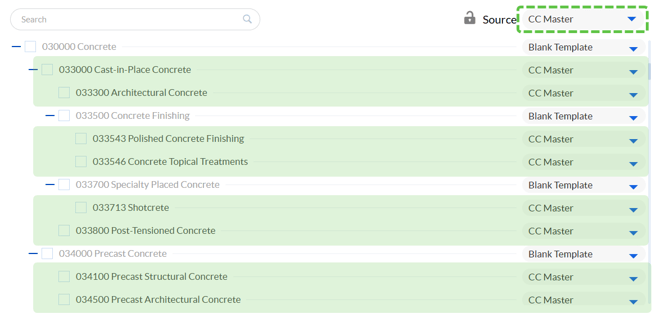
To use an available master as the source for a section, open the dropdown and select CC Master or Firm Master:
For help making Firm Masters available in Projects, see: Publishing Master Updates.
Refer to our Table of Contents for an up to date list of sections in the Conspectus Cloud Master Library.
To use an existing project as the source for a section, open the dropdown and click Click to Load Projects. This will locate any projects within the firm where this section occurs, and the user has the correct permissions:
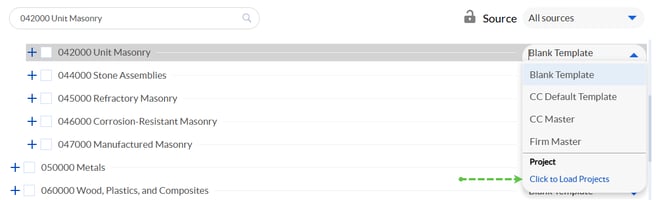
Once the list has loaded, select a project as the source:

Section Numbers and Titles must match exactly in order to be used as a source.Contact Support for help importing sections across projects.
Add Section to Project or Firm Master
Activate the checkbox to the left of the title to include the section in your project or firm master.
Remove Sections from Projects and Firm Masters
Deactivate the checkbox to the left of the title to remove the section in your project or firm master.
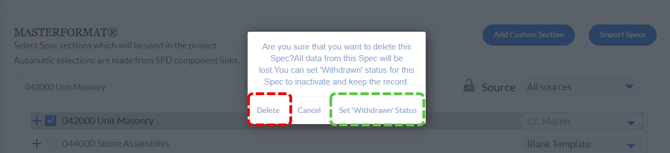
Then confirm you want to Delete to remove the content, or Set Withdrawn Status and preserve the content:
Other Tools
Filter the Spec Checklist
Use the source filter to quickly find the sections in your Default Spec Source, and automatically select that source for any available sections:
Retain Choice Selection and State
Sections can be imported with their choice group selections and resolved status intact, saving your team time and reducing error.
When unlocked (default), Choice Groups and Instructional choices

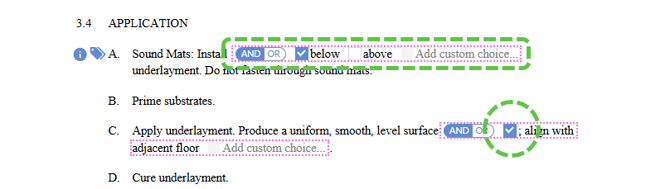
When locked, any sections imported from an existing project will retain their choice group selections, choice group resolved / unresolved states, and instructional choice entries.