
Jump to the right toolset:
| Editing | Choices | Comments | Display | Navigation |
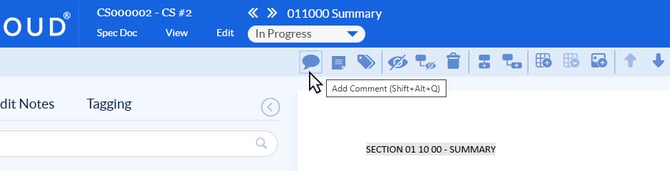
Hover tools in the document editor to see the corresponding keyboard shortcuts:
EDITING
Command |
Description |
PC Shortcut |
Mac Shortcut |
| Add Child Element | Insert new child below current element. | Alt+C | Option+C |
| Add Sibling Element | Insert new sibling below current element. | Alt+S | Option+S |
| Copy Element | Copy current element, including any child elements. | Shift+Alt+C | Shift+Option+C |
| Create Edit Note | Add new edit note to current element. | Shift+Alt+N | Shift+Option+N |
| Delete Element | Deletes current element, including any child elements. | Shift+Alt+D | Shift+Option+D |
| Hide / Show Sub-Paragraphs | Hides or unhides any child elements, while leaving state of current element unchanged. | Shift+Alt+S | Shift+Option+S |
| Hide / Show Element | Hides or unhides current element, including any child elements. | Shift+Alt+X | Shift+Option+X |
| Insert Link | Launches Insert Link window. | Alt+L | Option+L |
| Paste Element Above | Paste copied element and any child elements above current element. | Shift+Alt+↑ | Shift+Option+↑ |
| Paste Element Below | Paste copied element and any child elements below current element. | Shift+Alt+↓ | Shift+Option+↓ |
CHOICES
Command |
Description |
PC Shortcut |
Mac Shortcut |
Insert Choice Group(Master Editor Only) |
Insert new Choice Group at cursor position. | Shift+Alt+G | Shift+Option+G |
| Insert Instruction (Master Editor Only) |
Insert new Instructional Choice at cursor position. | Shift+Alt+I | Shift+Option+I |
| Resolve Choice Group | Resolve or Un-Resolve current Choice Group. | Shift+Alt+R | Shift+Option+R |
COMMENTS
Command |
Description |
PC Shortcut |
Mac Shortcut |
| Create Comment | Add comment thread at current element. | Shift+Alt+Q | Shift+Option+Q |
| Create Reply | Reply to comment thread at current element. | Shift+Alt+Q | Shift+Option+Q |
DISPLAY
Command |
Description |
PC Shortcut |
Mac Shortcut |
| Launch Audit Trail | Show Audit Trail for current element. | Alt+A | Option+A |
| Launch Master Update | On My Project Dashboard - Filter list to see projects where updates are available. On Project Dashboard - Filter list to see sections where updates are available. On Editor Page - Open Apply Master Update interface. |
Alt+M | Option+M |
| Show Final View | Toggle Show Final View setting. | Alt+F | Option+F |
| Show Hidden Elements | Toggle Show Hidden Element setting. | Alt+H | Option+H |
| Show Left Panel | Open and Close the left-land panel with Outline, Edit Notes, and Tagging. | Shift+Alt+T | Shift+Option+T |
NAVIGATION
Command |
Description |
PC Shortcut |
Mac Shortcut |
| Move Focus Down | Move cursor down to next element at the same outline level. In Choice Group - Move to next unresolved Choice Group |
Ctrl + ↓ | Shift + Command + ↓ |
| Move Focus Up | Move cursor up to next element at the same outline level. In Choice Group - Move to prior unresolved Choice Group |
Ctrl + ↑ | Shift + Command + ↑ |
| Move Node Down | Move element up down position in the outline. | Alt + ↓ | Option + ↓ |
| Move Node Left | Promote element one level in the outline. | Alt + ← | Option + ← |
| Move Node Right | Demote element one level in the outline. | Alt + → | Option + → |
| Move Node Up | Move element up one position in the outline. | Alt + ↑ | Option + ↑ |
| Move to Beginning | Move to start of document and focuses first element. | Ctrl + Home | Command + ↑ |
| Move to End | Move to end of document and focuses last element. | Ctrl + End | Command + ↓ |